How to Add AI Voiceover to YouTube Videos: Complete Workflow
Learn how to generate AI narration for YouTube videos. Covers script writing, voice matching, timing sync, and export for video editors like Premiere, DaVinci, and CapCut.
Voiceover narration is one of the most time-consuming parts of YouTube production. Recording, re-recording, editing out mistakes, and matching timing can take hours per video. AI voice generation compresses this into minutes while delivering consistent quality across every video.
Top-performing YouTube niches that use AI narration include educational explainers, listicle compilations, documentary-style content, product reviews, and meditation guides.
Matching Voice to Content Type
Explainer videos: Clear, authoritative, moderate pace
Top 10 lists: Energetic, slightly dramatic, engaging
Documentaries: Warm, narrative, thoughtful pacing
Tutorials: Patient, step-by-step, encouraging
Shorts/Reels: Fast, punchy, high energy
Script Tips for AI Voiceover
Write for the ear, not the eye. Short sentences work best. Use punctuation deliberately — commas and periods create natural pauses. Break your script into paragraphs that match your scene changes, so each audio segment aligns with a video clip.
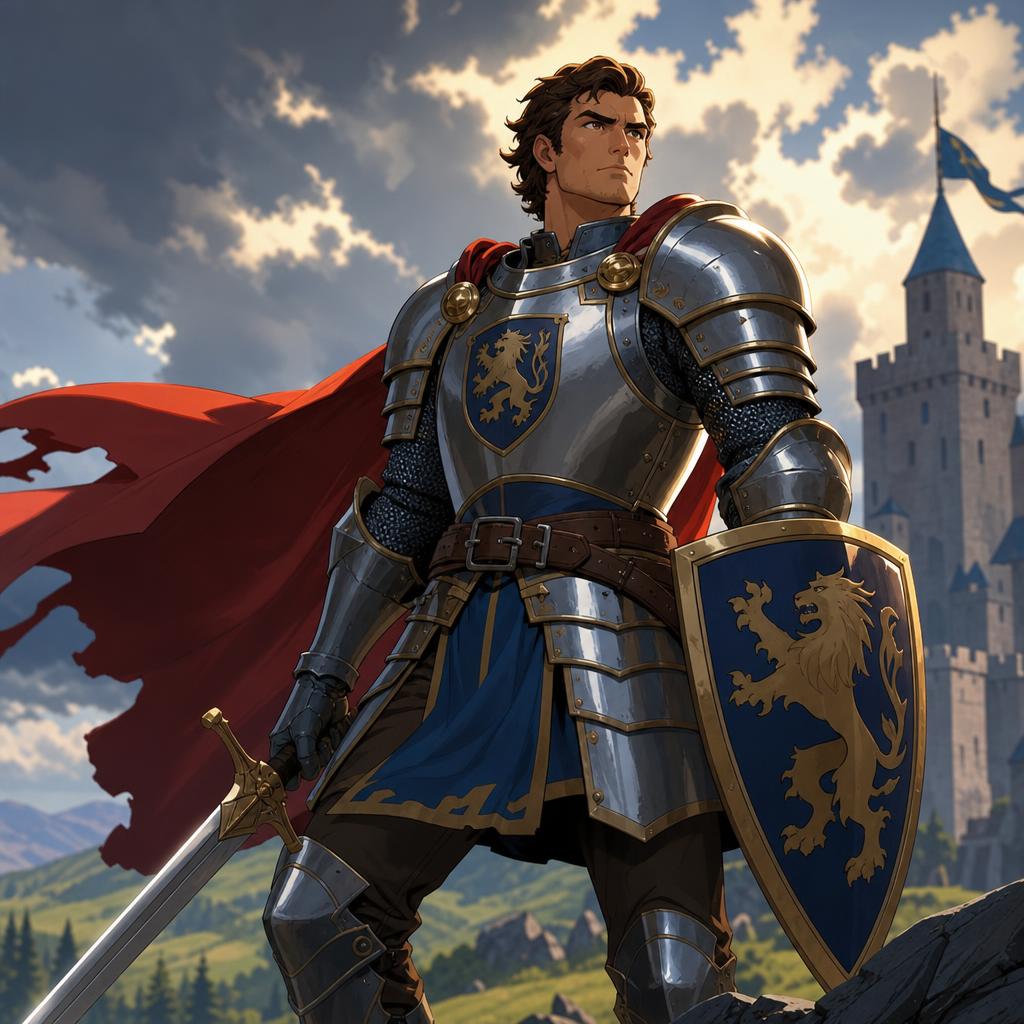
A brave knight voice, strong male tone, heroic and noble,...
Sample for this guide
“In a world where technology evolves faster than ever, one question keeps coming up: is AI here to help us, or replace us? Today, we break down the real answer.”
Space Explorer
A young space explorer voice, clear and determined, mediu...
Sample for this guide
“What if I told you the most powerful computer in the world fits in your pocket? Let's explore the five breakthroughs that made it possible.”
Old Storyteller
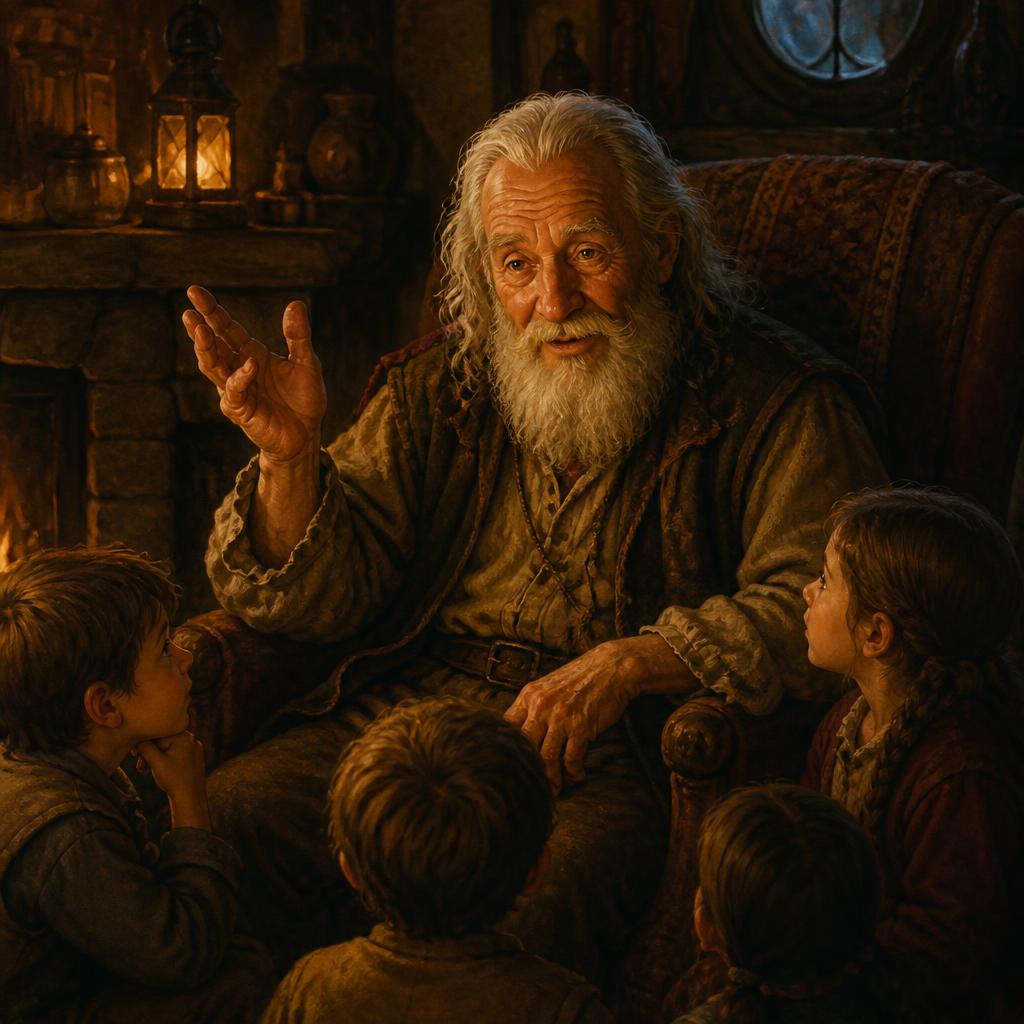
An old storyteller voice, warm and textured, slow pace, n...
Sample for this guide
“The year was 1998. A small team in a garage had an idea that would change how the world connects. This is the story they never wanted you to hear.”
Step-by-step workflow
1
Write the narration script
Break your video into scenes. Write one paragraph per scene, keeping each under 60 seconds of spoken audio. Mark natural pause points with commas.
2
Generate voice segments
Paste each paragraph into CharaVox and generate audio. Generate each scene separately so you can time and place them independently in your editor.
3
Sync with your video timeline
Import audio clips into your video editor. Align each clip with its corresponding scene. Trim silence at the start and end of each clip.
4
Add music and export
Layer background music at -20dB under the voice. Export the final video. For YouTube, use MP4 with AAC audio at 320kbps.
Common questions
Will YouTube demonetize videos with AI voice?
YouTube's policy targets repetitive, low-effort content, not AI voices specifically. High-quality, original content with AI narration monetizes normally.
How do I match voice timing to video clips?
Generate audio per scene rather than one long clip. This gives you precise control to align each voice segment with its video section.
What's the best voice for educational YouTube channels?
Choose a clear, authoritative voice at moderate pace. Avoid voices that are too dramatic or too casual for educational content. Test with a sample clip first.